Archives for category: Inspiration

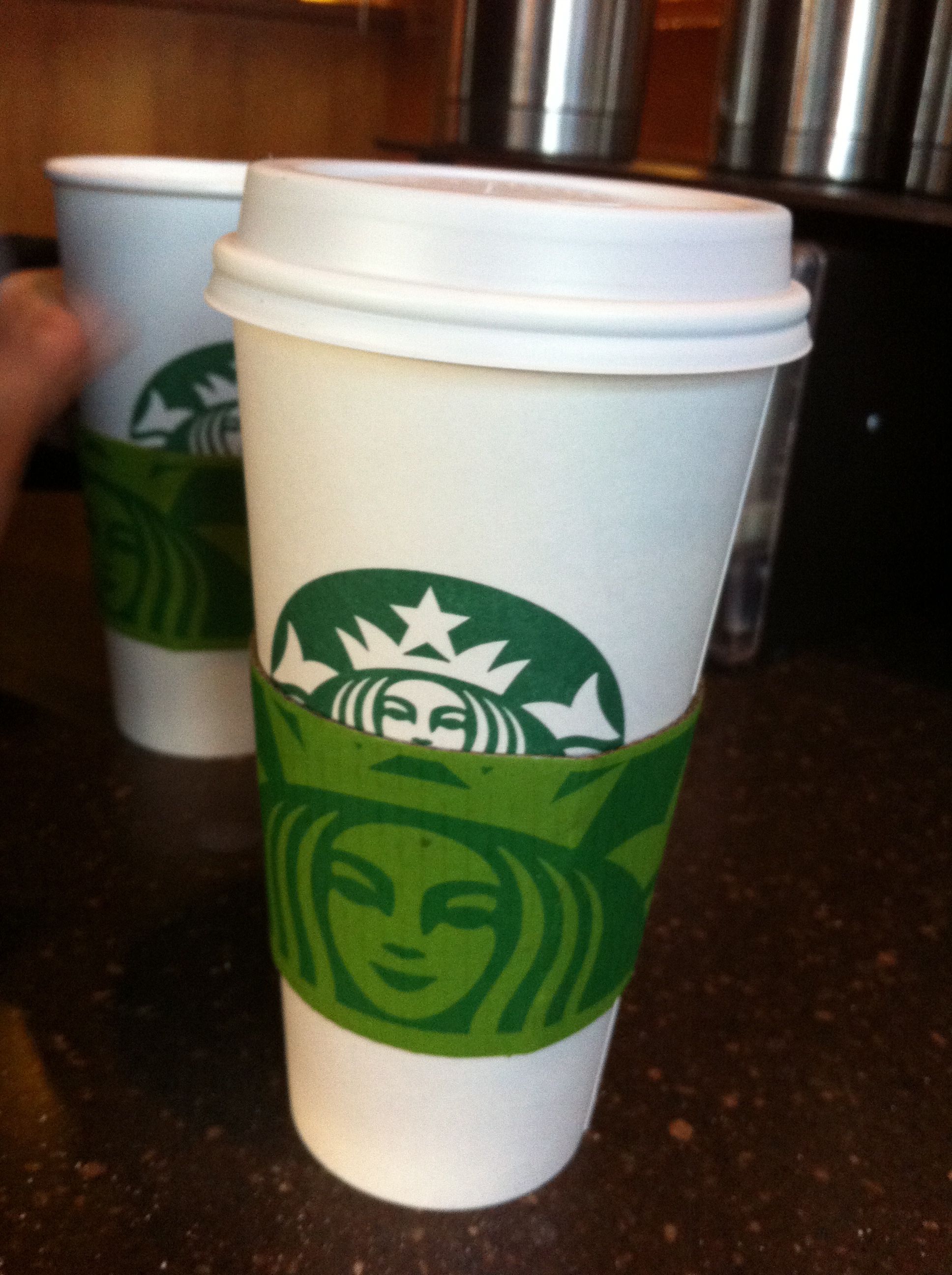
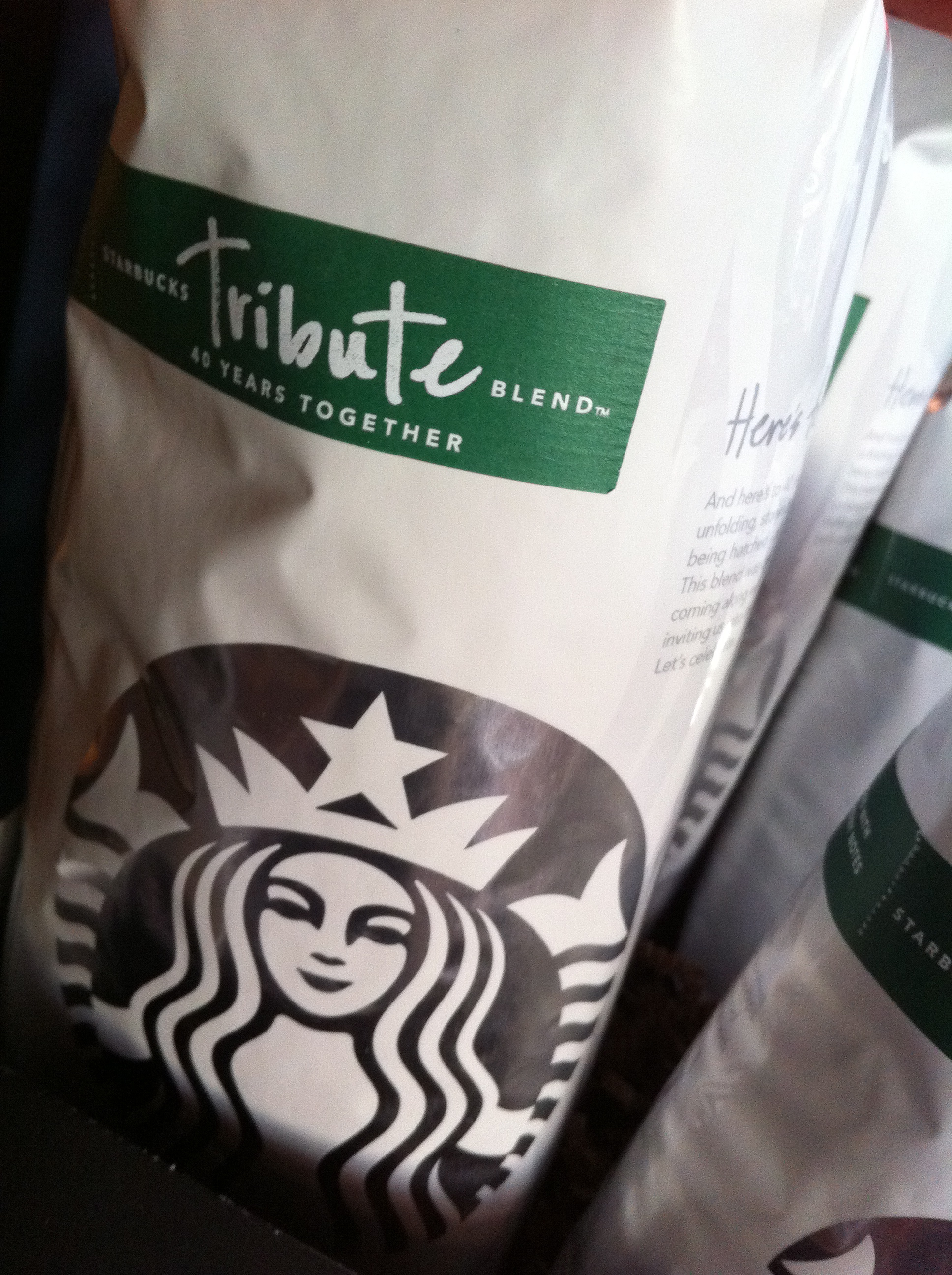
As I walked into my favorite corporate chain coffee shop, something felt a little bit different…

The rebrand had taken effect. After 3 months of waiting I was excited to witness firsthand the glorious minimalist aesthetic.

The clean green and white cups, the earthy sleeve, the texture of the 10% post-consumer recycled fiber. It was better than I had imagined. To my pleasant surprise, they had a 40 year anniversary blend, appropriately named “Tribute” which I tried. As I sip on it now, believe me, it is delicious. A tribute to Starbucks indeed.

The ominous, frightening image below explores the idea of the Internet Generation. In an era where everything we want is accessible at the touch of a button, instant gratification is expected and demanded. We derive our life force from this interconnectedness, from these constant interactions. Whether or not we choose to participate, we are all connected all the time. The grungy scene is not only a metaphor for our present state but also depicts what life may be like once we become merged with the technological devices that we take for granted.

The image was created in Photoshop from pictures of computer parts, cables, speakers, and a model. What better way to depict a technologically-based culture than using technology?

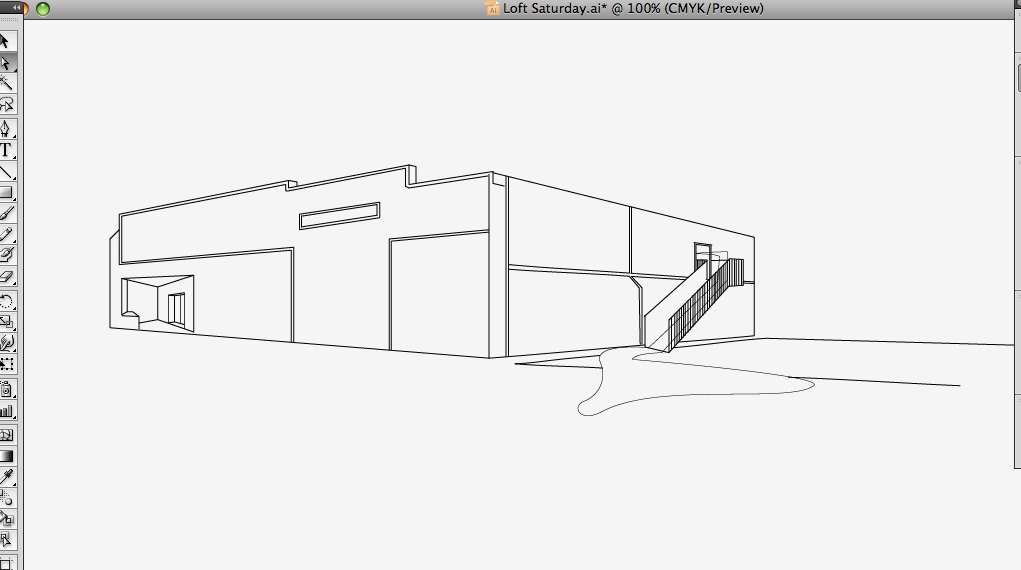
Hello, today I am going to walk you through how to make really cool architectural vector-based graphics in Adobe Illustrator.

Step 1: Get a Digital Image

You need a photograph, or other digital image, of the thing you want to stylize. Import this image into Illustrator and make it fill the artboard (Use the Select tool to drag the corner of the image & hold Shift to make sure it stays proportional).

Once you have your image ready, set it to 50% opacity, and lock the layer.

Step 2: On a New Layer, Trace the Image

Make a new layer. Using the line (for straight lines) or pen (for curved lines) tool, trace around the image, giving it form. Try to trace as many details as possible, and be sure to use Shift to make straight vertical and horizontal lines. When you have lines that need to be identical, a neat trick is to simply copy the line with the select tool. This can be done by holding Option (Control for PCs) and clicking and dragging on the line. Continue making lines until you have enough detail to bring your image to life. Feel free to bend the rules, or add your own touches; after all, that’s what being creative is all about!
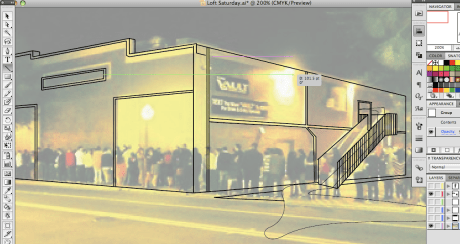
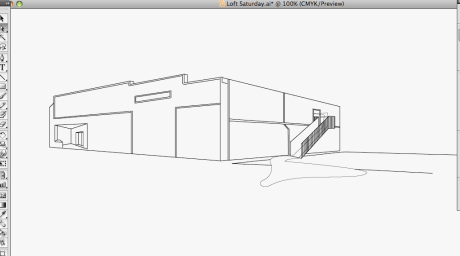
When you think you are finished tracing, hide the image layer below and behold your creation!

Step 3: The Final Touches

You’re almost done. This last part is just for kicks, to add an extra element or two to complete your design. Incorporate your image into a poster, add text, add color, do whatever you want. As you can see below, I made a flyer with a stylized ‘map’ showing the location of a club that is a little tricky to find. Not anymore, thanks to my graphic!

My final graphic, incorporated into a promotional flyer.
Most of the time I dislike the idea of crowd-sourcing design projects. However, the exception to my rule is cool indie rock bands! One such band is Cold War Kids. They’re releasing a new album in January and are using Creative Allies to get a poster.

Check out my design, vote/comment, and submit your own!

I love type. Arranging letters just happens to be a passion of mine. In this image I used a great font I found, called Lobster Font. Download it here for free.

Many times we get an idea and spend some time working on a piece of art or design just to save it and have it collect dust in some obscure folder on your hard drive. Here are some fun works I dug up from the past year. Enjoy.


*Will

To share resources, ideas, showcase our work, and develop our abilities through collaboration.